How Does a Camera People Counter Work? From Video Feed to Visitor Numbers
If you have ever wondered how a camera people counter works, the answer is more grounded than it sounds. There is no magic. A camera looks at a doorway, software finds the people in the picture, follows them as they move, and adds one to a tally when someone crosses a line you have drawn.
This guide walks the full path, from a video feed to a visitor number you can act on. We go step by step, in plain terms, so a store manager, an operations lead and an IT admin can all follow along.
One thing up front. With CountPort this runs on hardware you already control, inside your building, using body-only detection. No faces are matched at any step.
Key takeaways
- A camera people counter connects to an existing IP camera, detects body shapes, tracks each person across frames, and counts crossings of a virtual line.
- All of this can run on-site on a back-office PC, mini-PC, Mac Mini or a supported camera, so the video never has to leave the building.
- Detection is body-only and anonymous. There is no facial recognition and no biometric data is stored.
- Only the resulting numbers, not the video, are sent on to dashboards, APIs or your point of sale.
The short version: feed in, count out
Here is the whole pipeline. The software connects to a camera and reads its video. For each frame, it detects the people in view. It tracks each person from one frame to the next so the same shopper is not counted twice. When a tracked person crosses a virtual line at the entrance, that crossing is recorded as an entry or an exit. Add them up and you have footfall and live occupancy.
Everything above runs on hardware you place yourself: a back-office PC, a mini-PC, a Mac Mini or a supported camera, on-site. The camera feed does not need to travel to an outside server to become a number.
This is body-only counting. The software looks for the shape of a person, not a face. No facial recognition is used at any step, and no biometric identity is stored. For the full picture, see people counting without facial recognition.
Step 1: reading the camera stream
The first job is getting the video into the software. A camera people counter connects to an existing IP camera over standard protocols, usually RTSP or ONVIF. These are the same protocols most security cameras already speak, so in many cases you are pointing the software at a camera that is already on the wall.
That stream is read by hardware you run on-site. For a single store this might be a mini-PC or a Mac Mini in the back office. For larger sites it can be a back-office PC, and some supported cameras do the work on the camera itself. Either way, the device sits in your building, on your network.
Because the processing happens locally, the video never has to leave the premises. The software watches the frames, works out the counts, and the footage stays put. That matters for privacy and for IT review, and it is part of why CountPort runs as pure software on your existing cameras. For a fuller introduction, what is people counting covers the basics.
Step 2: detecting people in each frame
Once the software has a frame, it has to find the people in it. This is body-only detection. The model looks for the shape and outline of a human body, the head-and-shoulders form seen from above, or the full body from an angle. It is not looking for faces and it is not trying to identify anyone.
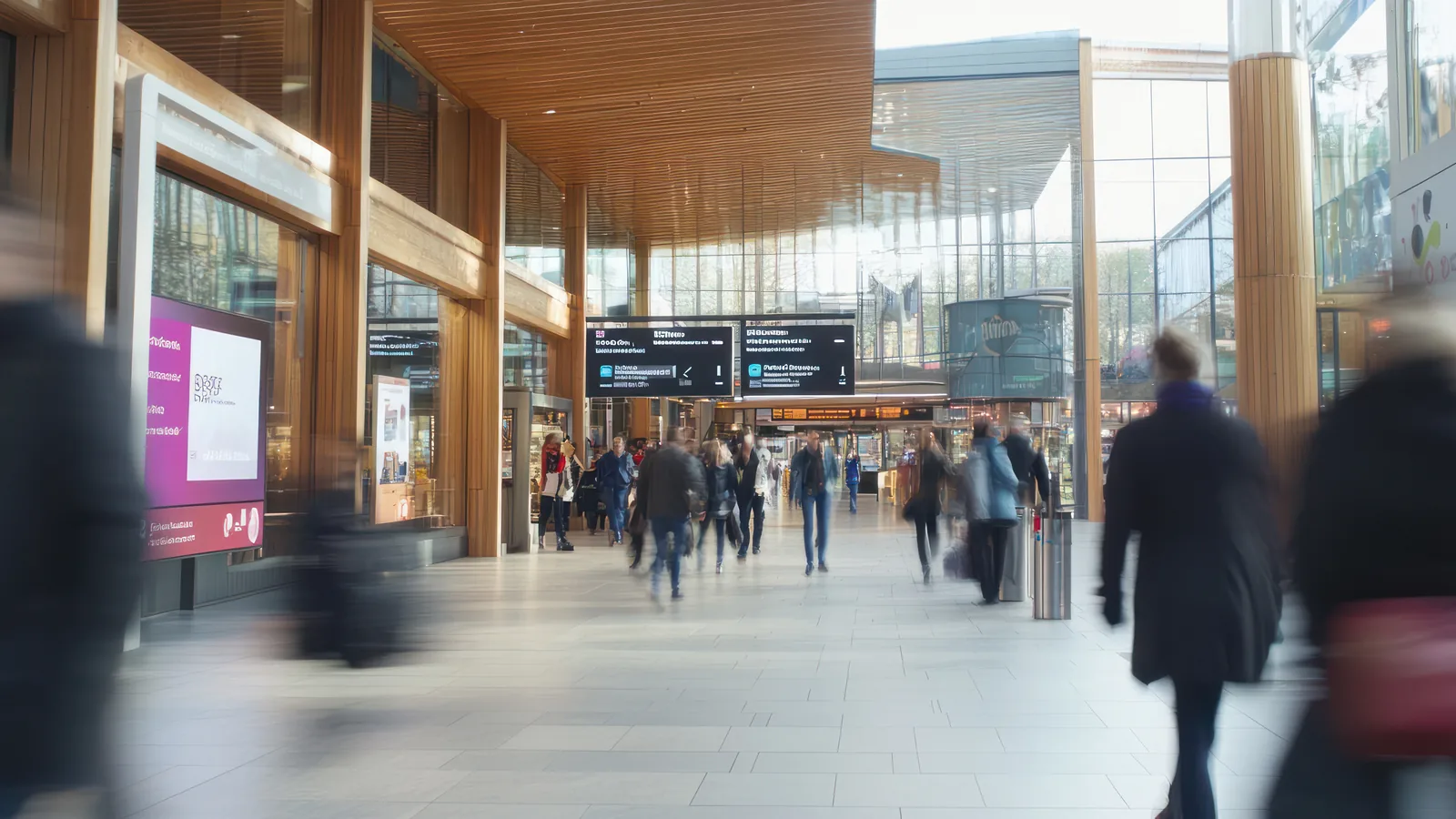
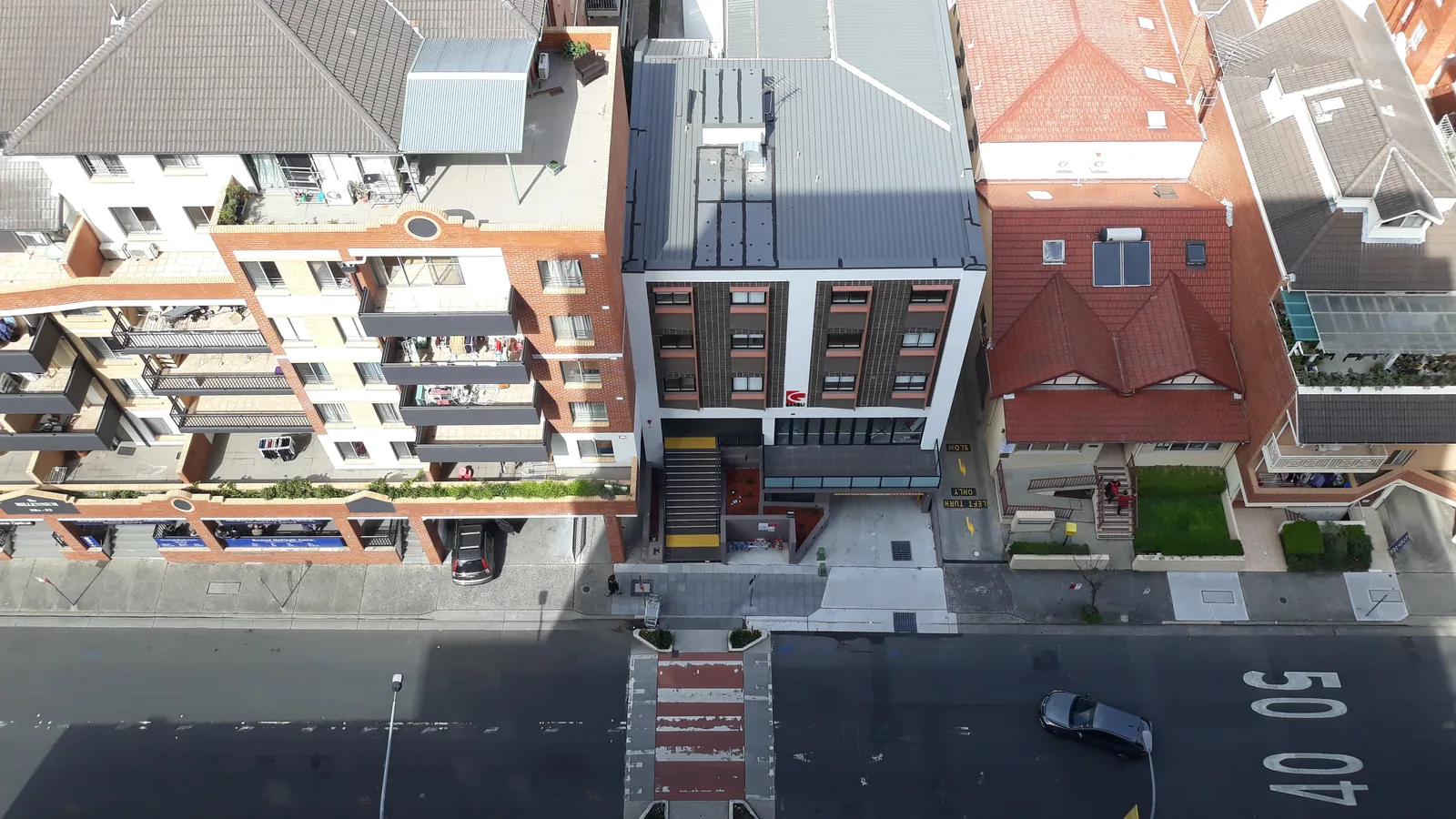
Framing changes how clean detection is. An overhead camera, mounted on the ceiling and pointing straight down, gives the cleanest separation between people because one body rarely hides another. An angled camera covers a wider scene but people further away can overlap, which makes the software work harder to tell them apart.
Anonymous detection is enough. To count someone, the software does not need to know who they are. It just needs to see that a person is there. The same is true for separating staff from shoppers, which it does from patterns of movement and appearance, not identity.
So it helps to be clear about what the model does. It draws a box around each detected person, frame by frame. It does not build a profile, recognise a returning customer by face, or keep any record of who walked through. It detects shapes, counts them, and moves on.
Step 3: tracking movement across frames
Detecting a person in a single frame is not enough. A camera sends many frames every second, and the same shopper appears in dozens of them as they walk through the door. Tracking is how the software links those detections together so that one person walking in is counted once, not once per frame.
Tracking also tells you direction. By watching where a person was a moment ago and where they are now, the software works out which way they are moving. That is what separates an entry from an exit, rather than just noticing that someone is near the door.
Busy doorways are the hard case. When two people walk through shoulder to shoulder, or one briefly passes behind another, the tracker has to decide whether it is still following the same person or a new one. Good camera placement, which we will come back to, gives the tracker the clearest possible view and keeps these moments rare.
One clarification. This is single-camera tracking. The software follows a person within one camera's view while they are in frame, then it is done. It does not re-identify the same individual on a different camera elsewhere in the store. Cross-camera re-identification exists as a concept in the wider industry, but it is not what CountPort does. Each camera counts what it can see.
Step 4: the count line and zones
Now we turn detections and tracks into actual numbers, and this is where you have control. You draw a virtual line across the entrance in the camera view, usually just inside the doorway. The line is not physical. It is a setting in the software. Whenever a tracked person crosses it, that crossing is recorded.
You can also define zones, which are areas you outline in the view rather than a single line. Zones are how the software measures how long people stay in a space (dwell) and how many people are in it right now (occupancy). A queue area in front of the tills is a common example.
Direction is what gives the count meaning. Because the tracker knows which way a person moved across the line, a crossing in one direction is logged as an entry and a crossing in the other as an exit. Get the line and direction right and your in-and-out counts line up with what staff see on the floor. This is the heart of people counting and footfall measurement, and the same lines and zones feed the occupancy and queue and wait-time features.
Step 5: from counts to dashboards and exports
Individual crossings are not very useful on their own. The software aggregates them. Crossings get rolled up into footfall by hour, by day and by entrance, so you can see your busy periods, compare doors, and watch trends over weeks rather than minutes.
Live occupancy comes from simple arithmetic. Take the entries, subtract the exits, and you have how many people are inside right now. Because the count line already separates the two directions, occupancy updates as people come and go.
What gets sent on is just the numbers. The dashboard shows counts, the API returns counts, and a point-of-sale correlation lines counts up against sales to give you conversion. None of that involves shipping video. The footage stays on-site, and only the figures travel.
Staff exclusion is applied before any of these numbers are reported. Movement that the software identifies as staff is removed from the count, so the footfall you see reflects shoppers rather than your own team walking past the door. The result is a cleaner number to plan staffing and measure conversion against.
What affects how clean the count is
No counting method is perfect, and it is worth knowing what moves the dial. The biggest factors are physical: camera height, angle and lighting. A camera mounted high and pointing down sees people clearly separated. A camera that is too low, tilted at a shallow angle, or fighting harsh backlight from a glass front gives the software a harder picture to read. Our guide to camera placement for people counting goes into the practical detail.
Crowding is the other big factor. When a doorway is packed and people overlap, some bodies are partly hidden behind others, which is called occlusion. The software handles a lot of this, but a very busy door with a poor camera angle is where small errors creep in. Wider, higher coverage helps.
Because every store is different, the honest advice is to validate on your own footage rather than trust a number from a brochure. Counting a known period against a manual tally tells you more than any headline figure. For how to read accuracy claims with a clear eye, see how accurate are people counters, and to see where cameras sit against other methods, people counter types compared lays it out.
Frequently asked questions
How does a camera people counter turn video into a number?
The software detects body shapes in each frame, tracks each person across frames, and records a count whenever someone crosses a virtual line at the entrance. Those crossings are added up into footfall and occupancy figures.
Does a camera people counter store the video?
With CountPort the video is processed on-site and stays in the building. Only the counts are sent on, so you are not shipping footage to the cloud just to get numbers.
Can it tell entries from exits?
Yes. By tracking which direction a person crosses the count line, the software separates people coming in from people going out. That same split is what live occupancy is calculated from.
Does it use facial recognition to count people?
No. Counting is done with body-only detection, so people are counted anonymously, without any facial recognition or biometric data.
See it count your own feed
The clearest way to understand how a camera people counter works is to watch it run on a doorway you know. We can connect to an existing camera, draw the line, and show you the counts on your own footage.
Request a demo and we will walk you through the full path from feed to number on your site.